













































































Customer relationships are built on understanding, timing, and the ability to respond with clarity and purpose. Yet for many sales and service professionals, gaining a complete picture of a contact often requires digging through emails, past activities, meeting notes, histories, and prior communications. This process can be time‑consuming, inconsistent, and difficult to manage on busy days. An AI‑driven summary feature within Act! CRM has the potential to transform this experience by giving users instant insight into their relationships and what to do next.
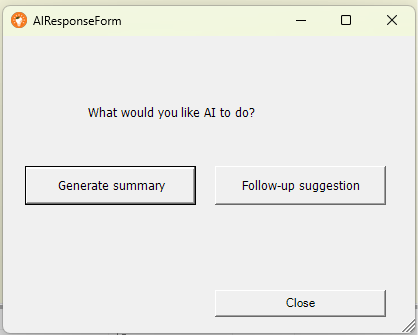
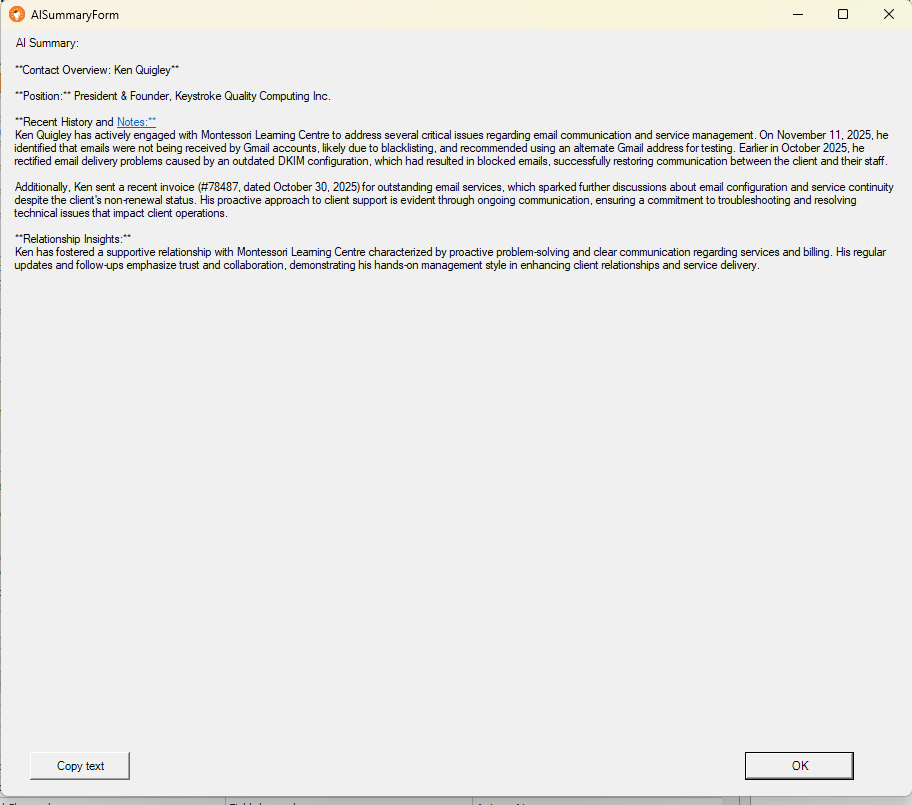
Imagine opening a contact record, clicking on a button, and immediately seeing a straightforward, easy‑to‑read summary generated from all historical interactions. Well, imagine no more, as we've just introduced the new Keystroke Contact Insights, to be released on January 15th.
Instead of scrolling through long timelines or searching for key details, KCI pulls together the most relevant points—who the contact is, what has been discussed, the status of engagements, and any open opportunities. This saves valuable time and ensures that important information isn’t overlooked. Whether you're preparing for a call, entering a meeting, or responding to an inquiry, AI provides all the necessary information instantly.
Beyond summarizing past engagement, KCI can add even more value by offering thoughtful recommendations. These suggestions might include follow‑up actions, reminders of commitments, or cues to re‑engage after periods of inactivity. By analyzing patterns in communication and the progression of the relationship, AI can help users stay proactive rather than reactive.
 |
 |
So how does KCI work?
Keystroke Contact Insights installs as a plugin into the desktop version of Act!, and leverages the artificial intelligence engine of either OpenAI (ChatGPT) or Microsoft Copilot (Azure Open AI) to quickly summarize the contact based on the last 500 histories and 100 notes (system-generated histories excluded) to provide a quick report or make quick recommendations.
You must have an existing account with one of the AI services to use KCI. You can use the free tiers of both services, but doing so may severely limit the number of API calls you can make; the first paid tier works like a car, where you fuel the tank and then run it until it's empty. During our testing, I've barely gone through a dollar's worth of tokens. Each person's mileage will vary based on their driving frequency and whether they drive in the city or on the highway (eg., density of notes & history), but the main point is that $20 worth of gas should last for months (that is the end of driving analogies).
We recommend adding $5 worth at the beginning to determine your token consumption rate. Please note that we throttle note searches to 100 and history searches to 500 to keep API calls at manageable levels.
What's the setup like?
Pretty easy, actually. Install the plugin while Act! is closed, and then click Tools > Contact Insights Settings to access the Preferences. Here, you will paste the API key from either OpenAI or CoPilot, click "Test Connection," and then you will be finished. The plugin adds a new toolbar button in the Contact Detail view, making it accessible when needed. See below for more details on acquiring the API eky.
The API key:
- Confirms who is making the request
- Allows OpenAI to process the data securely
- Ensures usage is billed correctly according to the user’s OpenAI account
To get your API key with Open AI:
- Click on this link: https://platform.openai.com/account/api-keys
- Sign in with your Chat GPT or OpenAI account
- Click on ‘+ Create new secret key’
- Copy the key and save it somewhere secure – it’s shown only once
- Paste it into ‘API Key’ field
To get you API key with Azure Open AI:
- Sign in to the Azure portal by clicking on this link: https://portal.azure.com/
- In the left menu: Create a resource->Search ‘Azure OpenAI’ -> Create
- After deployment, open created Azure OpenAI resource
- In the left panel:
- Endpoint: shown under Resource management - >Keys and Endpoint
- Keys: there are two (KEY1, KEY2) – either one works)
- Copy and paste both in ‘API key’ and ‘Endpoint’ fields
Why use KCI?
Integrating the Keystroke Contact Insights into Act! Desktop enhances productivity and decision-making. It helps users quickly understand the latest interactions, key discussions, and current context without manually reviewing hundreds of records. By focusing on the most recent activity, the summary highlights what matters now, enabling faster preparation for calls, meetings, and follow-ups.
Concise and easy-to-read AI-powered summaries and recommendations provide a practical advantage in a competitive environment where responsiveness and personalization matter more than ever, helping businesses deliver more meaningful engagement and build stronger, longer-lasting relationships.
The best part about KCI
And the best part is that it's available free of charge to Keystroke Orange Care customers. Customers can download the plugin from www.act4work.com, and then log in to www.day-minder.com to generate a license key to register the program. Just one more membership benefit to the best support plan available for Act! users.